Overview
Tell ScreenshotAgent what to point at, like “the Approve button”, and pick how to mark it. A vision model finds the element and returns where it is. ScreenshotAgent then draws the mark on top of the capture and saves the result as a new version. The original capture is always kept.
Tip
Save an annotation as a rule and the element is found and marked again on every new capture, so a screenshot circled for a help article stays circled after every recapture, even when the button moves.
Marks
| Mark | What it does |
|---|---|
| Hand-drawn circle | A sketchy red circle around the element, with a little room around it |
| Highlight element | A translucent highlighter fill with an outline; dark elements get the outline only |
| Add arrow | A red arrow pointing at the element from nearby open space |
| Add callout | A numbered badge on the element and a short label next to it |
| Blur sensitive data | Finds emails, names, phone numbers, addresses, API keys and tokens, and pixelates them |
| Add browser frame | Puts the screenshot in a browser window. Free on its own |
Use the What to mark field to name the element the way it is labeled on the page. For a callout, add the text in quotes, such as “the Billing tab, saying ‘New’”; otherwise the label is the element’s name. Leave the field empty and the most important call to action is marked.
Annotating a screenshot
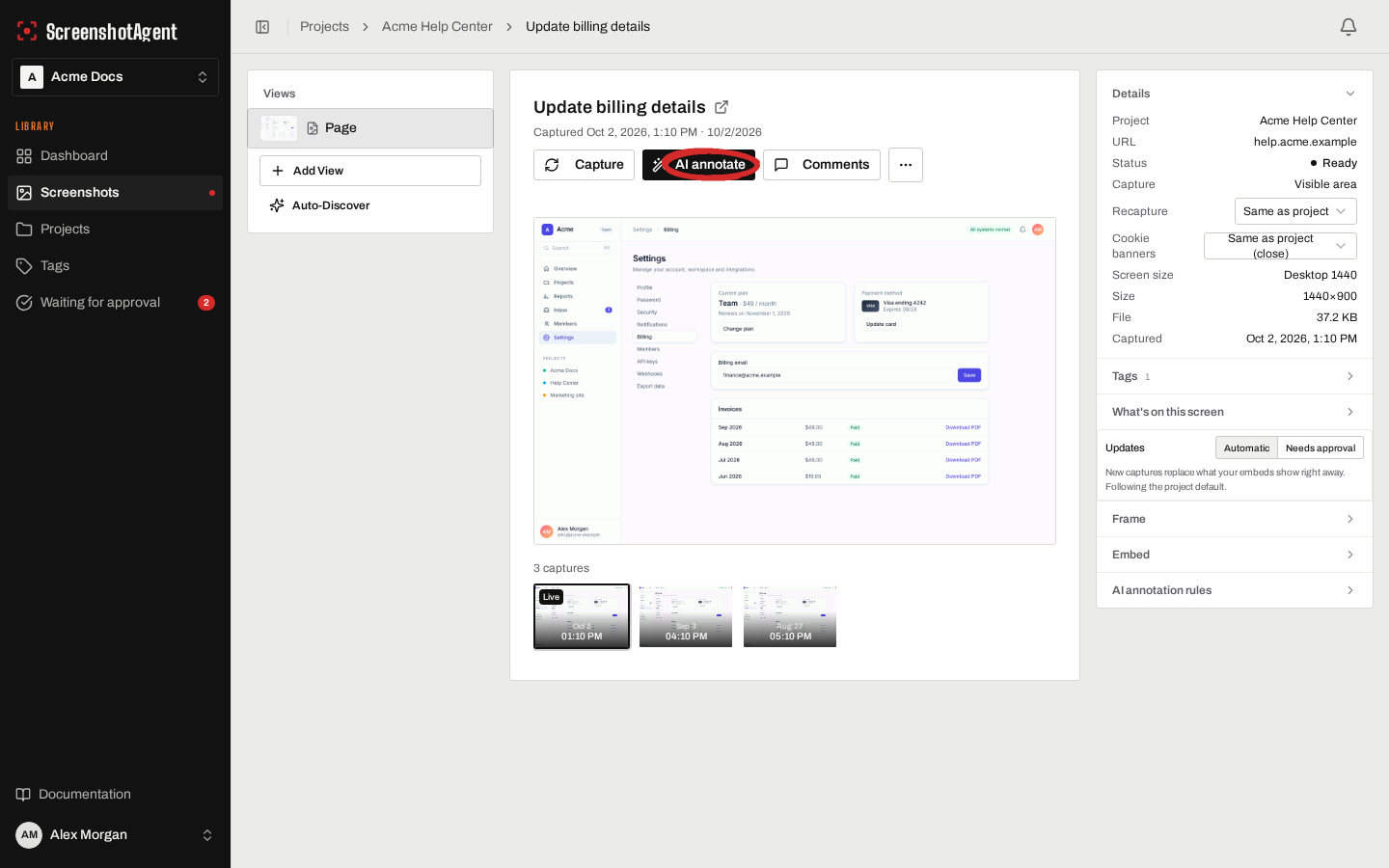
- Open a screenshot and click AI annotate.
- Pick one or more marks and say what to mark.
- Click Annotate. The annotated version appears in the version timeline when it is ready.
If the element can’t be found, the annotation fails with a message saying so and is not counted against your allowance. Tick Also run on every new capture to save the same settings as a rule.
Rules
Rules live in the AI annotation rules section of a screenshot’s details panel. Each active rule marks every new capture of that screenshot, and optionally of its child views. Rules can be paused, edited or deleted at any time.
Target a CSS selector instead
If you know the element’s CSS selector, give it to the rule. ScreenshotAgent measures the element’s exact box when the page is recaptured and draws the mark there, with no AI call and no allowance used. The app suggests selectors the screenshot already outlines or highlights. If the selector can’t be measured on a capture, AI finds the element instead and that capture uses one AI annotation.
Public embeds and approval
- In Auto serve mode the embed URL serves the annotated version once it is ready. While a rule is still running, the new plain capture is not served.
- In Manual serve mode the annotated version waits for approval like any other version. See Version Approval.
- If an annotation fails, or is skipped because the allowance ran out, the plain capture is served instead, unless a rule uses Blur sensitive data. Then the unblurred capture is never served publicly.
Allowance
| Free trial | Pro | Business | Enterprise | |
|---|---|---|---|---|
| AI annotations | 100 in total | 2,000 / month | 6,000 / month | 15,000+ / month |
One AI annotation is one marked-up screenshot that needed AI to find its target, whether it was started in the app, by a rule, through the API or over MCP. A browser frame alone and rules that target a CSS selector are free, and annotations that can’t find their target are not counted. The allowance is separate from captures. When it runs out, AI annotations pause until your next billing period: rules are skipped, the plain capture is kept, and the screenshot page says why. Usage shows in Settings → Team → Billing.
API and MCP
curl -X POST https://screenshotagent.com/api/v1/screenshots/42/ai-annotations \
  -H "Authorization: Bearer <token with the captures scope>" \
  -H "Content-Type: application/json" \
  -d '{"presets": ["hand_drawn_circle"], "instructions": "the Approve button"}'
See the AI Annotations Endpoint for the full reference. Coding agents can do the same with the annotate_screenshot and get_annotation_status tools on the MCP server.
Good to know
- Marks are drawn at the capture’s full resolution, on full-page captures too. The same element gets the same circle on every capture.
- Blur relies on AI to find the sensitive data, so check blurred screenshots before you publish them. To hide something you can point at exactly, use a selector annotation.