Searchable Screenshot Library
Every screen of your product that you have captured, in one library the whole team can search by meaning, not just keywords. Find a screen by what it shows, kept current on a schedule or after each deploy, with no extra cost per seat.
The problem
PMs, support and designers all need the current version of a screen. They dig through Slack threads and old decks, take a fresh screenshot by hand, or paste one that shows last quarter's UI.
How ScreenshotAgent solves it
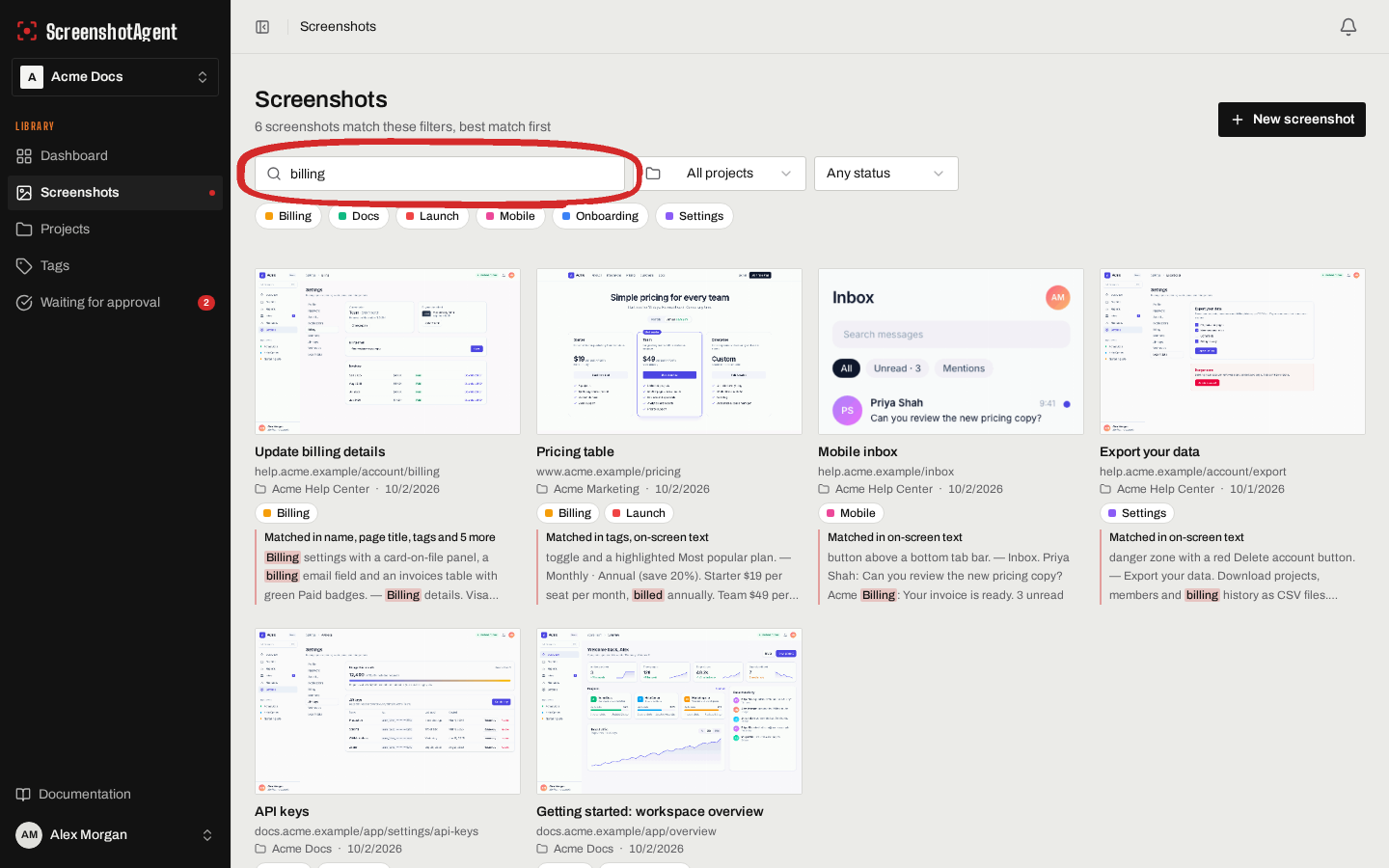
ScreenshotAgent keeps a library of every screen you have captured or Page Discovery found, recaptured on a schedule or after each deploy. Each capture records what was on screen: the page title, headings, a short description of the layout and notable elements, UI element labels and the main visible text. Search in your own words: results match by meaning as well as by keyword, so "change password" finds a screen titled "Update credentials" and "empty state with an illustration" finds the screen described that way. Keyword matches show the matching text highlighted, and the rest are marked "Matched by meaning" with the field that matched.
Who searches it
Product manager
Writing a spec for a pricing change and needs the billing screen as it looks today, not as it looked in last year's deck.
Searches forbilling
Opens the top result and copies the latest capture, or its permanent embed URL, into the spec.
Support
A customer asks where to export their data.
Searches forexport data
Sees "Export" highlighted in the on-screen text of the account settings screen and pastes that screenshot into the reply.
Marketing
Needs an example empty state for a launch post but does not know what any of them are called.
Searches forempty state with an illustration
Gets the screens whose capture description mentions an empty state with an illustration, marked "Matched by meaning".
Designer
Renaming "Workspace settings" and needs every screen where the old label still shows.
Searches for"Workspace settings"
Searches the exact phrase and gets each captured screen whose headings, UI labels or visible text still include it.
Expected outcomes
- Search by meaning, not just keywords: "change password" finds the "Update credentials" screen, even though no word matches.
- Find a screen by what it shows, such as "the pricing table" or "settings modal with a red Delete button", from the description recorded at capture time.
- Find a screen by its name, tag, project, URL, or the exact words that were on it when it was captured.
- Each result shows why it matched: the matching text highlighted for keyword matches, or the closest field for matches by meaning.
- Results are current: screens are recaptured daily, weekly or monthly, or from your deploy pipeline with the Recapture API.
- Every plan includes unlimited users, so the whole team searches the same library at no extra cost per seat.
- The same search works over the REST API and for coding agents through the MCP server.
FAQ
- How does search work?
- Describe what you are looking for in your own words. ScreenshotAgent searches every screenshot's name, tags, project and URL, plus what was recorded on screen when it was captured: titles, headings, buttons, labels and a description of the layout. It combines keyword matches with matches by meaning (a text-embedding model compares your query with each screen's recorded text), so you do not need the exact words on the page. Results are ranked best match first. Use "quotes" for an exact phrase and a minus sign to exclude a word; those always match exactly.
- Is this image search?
- No. Search does not look at pixels. When a page is captured, the capture agent writes a short description of what the screen shows, such as "settings modal with a red Delete button and a usage chart", and search matches your query against that description and the rest of the recorded text. If something was neither described nor written on screen, search cannot find it. Matching by meaning works best in English.
- Does it index every word on the page?
- Each capture records the page title, up to 10 headings, a short description of the layout and notable elements, up to 15 UI element labels and the most prominent visible text (up to 1,500 characters). Long pages are summarized, so search for labels, headings and button text rather than a sentence buried deep in a long article.
- Which screens are in the library?
- Every screen you have captured, plus the pages Page Discovery found and you chose to capture. Nothing is added without a capture, and on-screen details are recorded on each new capture.
- Does adding teammates cost more?
- No. Every plan includes unlimited users. Plans are priced by captures, not seats.
- Can our tools and agents search it too?
- Yes. Call GET /api/v1/screenshots/search with a read-scoped team API token, or connect the ScreenshotAgent MCP server and use the search_screenshots tool from Claude Code, Cursor and other MCP clients. Results include a highlighted snippet and, for public screenshots, permanent embed URLs.
Related features
- AI AnnotationsCircle, highlight, or point at the part of a screenshot that matters. AI finds it, we draw on top, and your screenshot's pixels are never changed.
- Automated ScreenshotsCapture product screenshots automatically so docs and marketing visuals stay current.
- AI-Ready ScreenshotsLet coding agents find your screenshots by what is on them and drop always-current embed URLs straight into your docs.
Automate this workflow in your team
Start a free trial and connect your first project to see ScreenshotAgent capture and keep pages fresh.