AI Annotations
Circle, highlight, or point at the part of a screenshot that matters. AI finds it, we draw on top, and your screenshot's pixels are never changed.
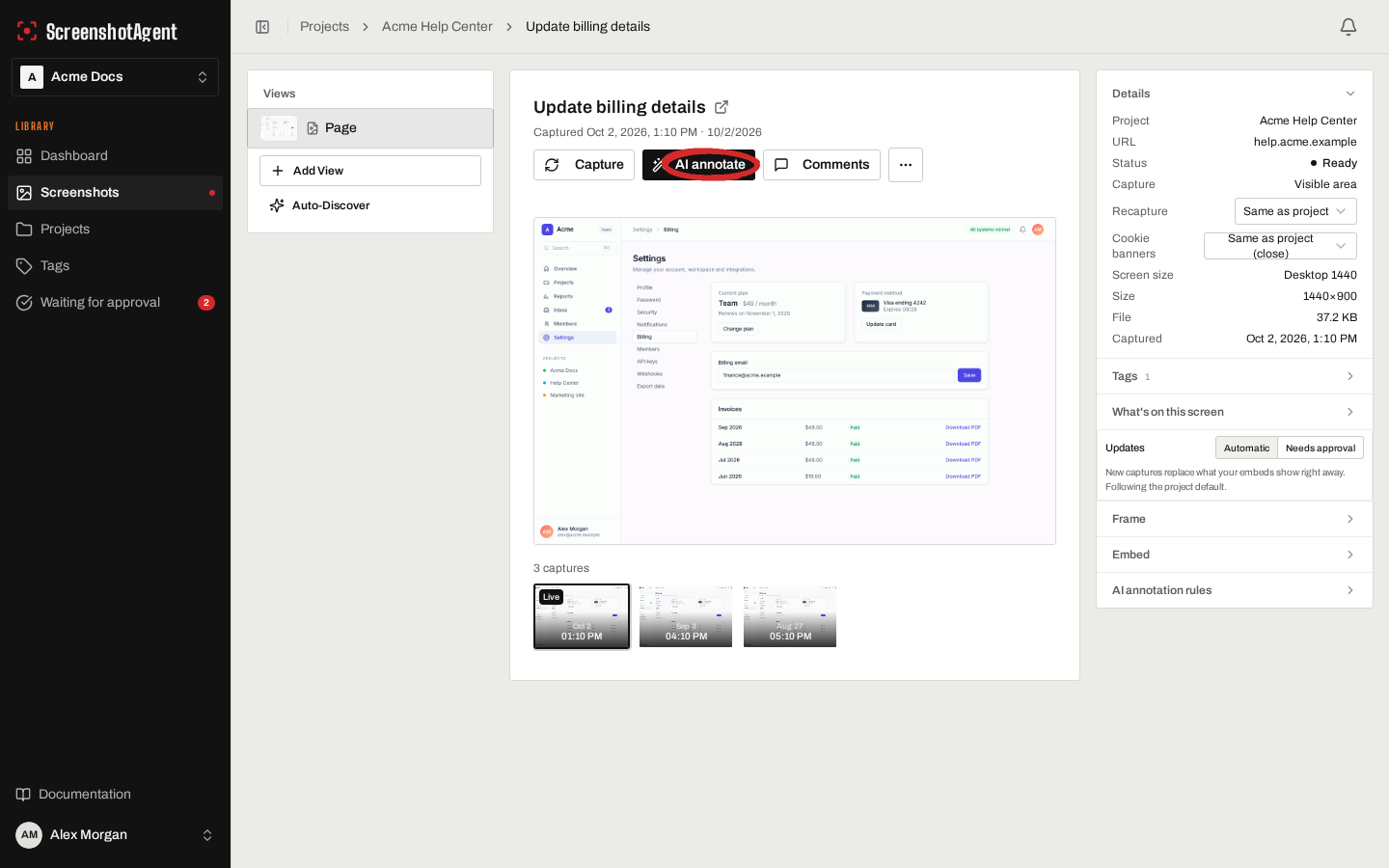
The problem
Help articles and docs need a circle around the button or an arrow to the new setting. Marking that up by hand takes minutes per image, the markup is lost the next time the screenshot is updated, and AI image editors redraw the whole picture and change the text.
How ScreenshotAgent solves it
Name what to mark ("the Approve button") and pick a hand-drawn circle, arrow, highlight, numbered callout, or blur. A vision model finds the element and ScreenshotAgent draws the mark on top of the original capture. Every pixel outside the mark stays exactly as captured. Save it as a rule and the element is found and marked again on every new capture.
Example: an agent circles the new button for the release notes
Connect the ScreenshotAgent MCP server with a team API token that has the captures scope, then ask:
Public screenshots serve the circled version from the same embed URL, so the docs pick it up without a new upload. The capture underneath is untouched.
> Circle the new Export button on the reports screenshot and give me the image URL.
- 1.The agent finds the screenshot with search_screenshots.
- 2.It calls annotate_screenshot with the hand_drawn_circle preset and the instructions "the Export button".
- 3.ScreenshotAgent finds the button, draws the circle on top of the latest capture and saves it as a new version.
- 4.The agent polls get_annotation_status until done is true.
Expected outcomes
- Your screenshot's pixels are never changed: we draw on top, and an automated test checks every pixel outside the mark.
- Rules find the element again on every recapture, so the circle follows the button when the layout moves.
- Blur emails, names and keys that a CSS selector cannot target.
- Works from the app, the REST API and the MCP server, so coding agents can annotate too.
FAQ
- Will it change anything else in my screenshot?
- No. The AI only reports where the element is. ScreenshotAgent draws the circle, arrow, highlight, callout or blur on top, and every other pixel is copied from the capture unchanged. The original capture is also kept as its own version.
- How many AI annotations are included?
- Pro includes 2,000 a month, Business 6,000 and Enterprise 15,000 or more. Free trials include 10 AI annotations, and 100 once you add a card. A rule uses one each time its screenshot is captured. A browser frame alone, and rules that target a CSS selector, are free. If the element cannot be found, the annotation is not counted.
- What if it marks the wrong thing or cannot find it?
- Describe the element the way it is labeled on the page, or give the rule a CSS selector: it is measured exactly when the page is recaptured and uses no allowance. When nothing matches, the annotation fails with a message and is not counted.
- How is this different from selector annotations?
- Selector annotations (border, highlight and hide by CSS selector) are applied in the browser before the capture. AI annotations are drawn on the captured image, so they can add hand-drawn circles, arrows, numbered callouts and blur, and you can name the element instead of writing a selector. Use both.
Related features
- Searchable Screenshot LibraryEvery screen of your product that you have captured, in one library the whole team can search by meaning, not just keywords. Find a screen by what it shows, kept current on a schedule or after each deploy, with no extra cost per seat.
- Automated ScreenshotsCapture product screenshots automatically so docs and marketing visuals stay current.
- AI-Ready ScreenshotsLet coding agents find your screenshots by what is on them and drop always-current embed URLs straight into your docs.
Automate this workflow in your team
Start a free trial and connect your first project to see ScreenshotAgent capture and keep pages fresh.